 By Audrey Hayes
Wi-Fi baby monitors let you check on your child from another room or while you are away, but connecting a camera to your home network also introduces privacy and safety considerations. The UK National Cyber Security Centre (NCSC) explains that smart cameras and baby monitors that use Wi-Fi can, in rare cases, be accessed by unauthorized users if they are not set up securely. At the same time, the U.S. Consumer Product Safety Commission (CPSC) warns that monitor cords can pose a strangulation risk for infants and toddlers. Taking a few straightforward steps can help you use a Wi-Fi baby monitor more safely.
How a Wi-Fi baby monitor works
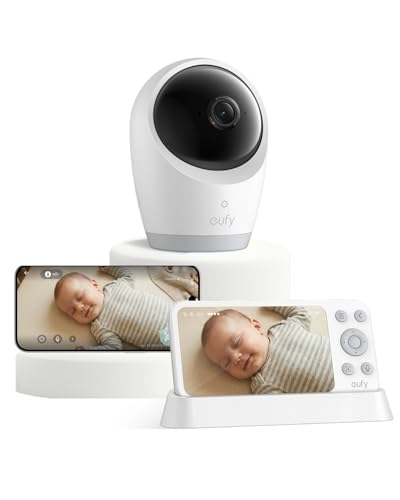
A Wi-Fi baby monitor is a camera that connects to your home wireless network. According to the NCSC, this connection allows you to watch a live feed, receive alerts when you are out, and sometimes record footage. The same internet link that makes remote viewing convenient also means the camera is reachable online, which is why securing the device matters. If you are still deciding between a Wi-Fi and a non-Wi-Fi model, our Wi-Fi vs Non-Wi-Fi Baby Monitors article compares the trade-offs in range, privacy and security.
Step-by-step security checklist
The table below pulls together the key actions described by the NCSC for protecting a smart camera, along with cord safety guidance from the CPSC. Each row is based directly on those sources.
| Action | What to do | Why it matters |
|---|---|---|
| Change the default password | Replace the manufacturer’s password with a strong one. The NCSC suggests connecting three random words that you will remember, and avoiding commonly used passwords. | Default passwords are often well-known or guessable (such as “admin” or “00000”). Changing them makes it much harder for cyber criminals to access the camera remotely. |
| Keep the camera updated | Regularly update the camera’s software (sometimes called firmware). If the app offers automatic updates, switch that option on. | Using the latest software improves security and often adds new features, according to the NCSC. |
| Turn off remote access when not needed | If you do not need to view the camera feed over the internet while away from home, disable that feature in the app. | Disabling remote access removes a pathway that could be exploited. The NCSC notes this may also stop movement alerts and smart home integrations. |
| Check router settings for UPnP and port forwarding | Look in your router’s settings for UPnP and port forwarding. The NCSC recommends considering disabling them if you do not rely on them. | Cyber criminals can exploit these technologies to potentially reach devices on your network, including smart cameras. |
| Place monitor cords safely | Position all cords at least three feet away from any part of the crib, bassinet, play yard or other safe sleep space. Never put a monitor inside or on the edge of a crib. | The CPSC reports that since 2002, seven infants and toddlers were strangled in baby monitor cords and three nearly strangled. Keeping cords out of reach reduces that risk. |
Putting the steps into practice
The NCSC advises that you can usually change the password and manage updates through the app that came with the camera. For older models, you may need to type the camera’s IP address into a browser; you can find that address in your router’s list of connected devices. When you update the software, look for words like “update,” “firmware” or “software” in the app’s settings. If you are unsure, the manufacturer’s support website or manual will have model-specific instructions.
Disabling UPnP and port forwarding is done through your router’s administration page. The NCSC points out that some routers ship with UPnP turned off by default, so you may not need to change anything. Be aware that turning off these features can affect online gaming, media servers and some other smart devices. You will need to decide whether the convenience is worth the trade-off for your household.
For cord placement, the CPSC urges parents to immediately check the location of all monitors and other products with electrical cords, including those mounted on the wall. The agency’s simple rule is: at least three feet away is where your monitor should stay. You can also request a free permanent warning label about the strangulation risk to affix to the cord at www.BabyMonitorSafety.org. Our Baby Monitor Placement and Cord Safety guide walks through positioning tips in more detail.
Other settings worth checking
Beyond these steps, look through the monitor app’s settings and the maker’s support pages for any extra account security options it offers, and follow the maker’s instructions for resetting the camera before you sell, give away or dispose of it. If you are considering a secondhand baby monitor, our Buying Secondhand Baby Gear article explains what to check for any pre-owned item.
Frequently asked questions
Do I need to change the password if the camera never leaves my home network?
Yes. The NCSC explains that smart cameras are often configured so you can access them while away from home, which means they are reachable from the internet. Even if you never use that feature, the default password may still be guessable, so changing it is a basic precaution.
Will disabling remote access stop the camera from working at all?
No. According to the NCSC, turning off remote internet viewing will prevent you from seeing the feed when you are not on your home Wi-Fi, and it may stop motion alerts and smart home integrations. Check your camera’s manual for how it behaves with remote access turned off.
What if my router does not let me disable UPnP?
The NCSC notes that some routers have UPnP disabled by default, and that is fine. If your router does not offer an option to turn it off, check the manufacturer’s website or manual. In some cases, you may need to accept the feature if you rely on certain applications, but you can still follow the other security steps to reduce risk.
For more help choosing and using a monitor that fits your family, see our Baby Monitors guide, which covers types, features and safety considerations.
Sources
- NCSC: Smart security cameras, using them safely in your home
- CPSC Safety Alert: Infants and Toddlers Can Strangle in Baby Monitor Cords
About Audrey Hayes
Audrey Hayes is part of our editorial team and reviews and edits our baby gear guides, checking product details against manufacturer specifications and owner feedback.